
Best PC and Mobile Settings to Play Dandys World Without Lag
Dandys World is not a casual idle game — it is a fast-paced, team-based survival horror experience where every frame counts. When a Twisted is chasing you and you need to loop around a corner, lag can mean the difference between escaping safely and getting eliminated. A failed skill check because of a stuttering frame can alert every Twisted on the floor.
Unlike many Roblox games that run lightly, Dandys World features dynamic lighting, animated Twisted AI, multiple simultaneous players, and particle effects that push older hardware. The good news? With the right settings, even mid-range PCs and budget Android phones can run the game smoothly.
Before adjusting any settings, always close background apps first. Discord overlays, Chrome tabs, and streaming software are the most common causes of unexpected lag spikes during Dandys World runs.
Best PC Settings for Dandys World
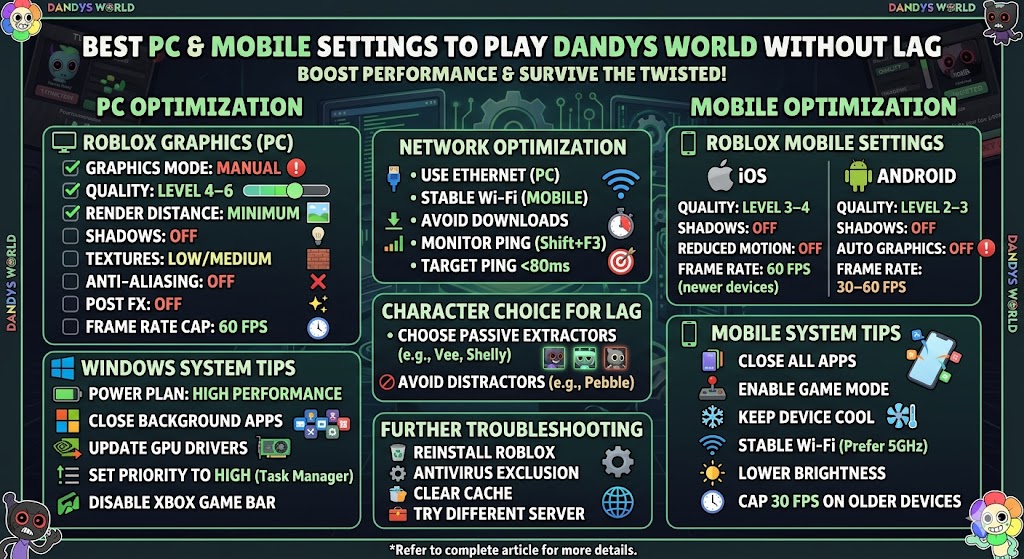
Roblox has its own graphics settings menu that directly impacts how Dandys World performs. To access it, press Escape during gameplay and click Settings. Here are the recommended configurations:
Roblox Graphics Settings (PC)
| Setting | Recommended Value | Impact |
| Graphics Mode | Manual | Critical |
| Graphics Quality | Level 4–6 (out of 21) | Critical |
| Render Distance | Minimum | Critical |
| Shadows | OFF | High |
| Textures | Low | Medium |
| Anti-Aliasing | OFF | Medium |
| Post FX | OFF | Low |
| Frame Rate Cap | 60 FPS | High |
The single most impactful setting is Graphics Quality. Dropping it from the default to level 4–6 can double your frame rate on mid-range hardware without making the game look significantly worse. Dandys World's horror atmosphere depends more on sound and movement than visual fidelity, so this trade-off is absolutely worth it.
Windows System Performance Tips
These system-level tweaks ensure Roblox gets maximum resources from your PC:
- Set Windows Power Plan to High Performance (never Power Saver)
- Close all unnecessary background apps, especially browsers with many tabs
- Update your GPU drivers via NVIDIA GeForce Experience or AMD Adrenalin
- In Task Manager, right-click RobloxPlayerBeta.exe and set Priority to High
- Disable Xbox Game Bar (Windows Key + G) as it can interfere with Roblox performance
Pro Tip: Playing Dandys World in Windowed Fullscreen mode can improve performance on some systems because Windows handles the display differently. Try both and see which gives smoother frame rates on your specific setup.
Best Mobile Settings for Dandys World
Playing Dandys World on mobile is fully viable, but it requires different optimization strategies. The settings that matter most on mobile are different from PC.
Roblox Mobile Graphics Settings
| Setting | iOS Recommended | Android Recommended |
| Graphics Quality | Level 3–4 | Level 2–3 |
| Shadows | OFF | OFF |
| Reduced Motion | OFF | OFF |
| Frame Rate | 60 FPS (A15 chip or newer) | 30–60 FPS depending on device |
| Auto Graphics | OFF | OFF |
On Android, the biggest performance gain comes from turning Auto Graphics OFF and manually setting a lower quality level. Auto mode often defaults to settings higher than your device can handle stably, causing thermal throttling mid-run — exactly when you cannot afford a lag spike.
Mobile System Tips
- Close all background apps before launching Roblox
- On Android, enable Game Mode or Game Booster if available on your device
- Keep your device cool — heat causes thermal throttling which tanks frame rates instantly
- Use a stable Wi-Fi connection rather than mobile data for consistent ping
- Lower screen brightness slightly to reduce heat during long sessions
- On older iPhones (XR and earlier), cap frame rate to 30 FPS for a smoother, more consistent experience than an unstable 60
Overheating Warning: If you notice lag specifically on higher Dandys World floors, it may be thermal throttling rather than a settings issue. Take short breaks between runs or use a phone cooling fan attachment for long sessions.
Network Optimization for Dandys World
Dandys World is a multiplayer game, which means your internet connection quality directly affects gameplay. High latency causes rubber-banding during Twisted chases and can desync skill check timings for your entire team.
How to Reduce Ping in Dandys World
- Use a wired Ethernet connection on PC instead of Wi-Fi — this alone can cut ping by 20 to 40ms
- If using Wi-Fi, sit closer to your router and use the 5GHz band, not 2.4GHz
- Avoid downloading or streaming at the same time as a Dandys World run
- Enable QoS (Quality of Service) on your router to prioritize gaming traffic
- Use Roblox's built-in ping display by pressing Shift + F3 to monitor your connection in real-time
Target Ping: Aim for under 80ms for a smooth Dandys World experience. Above 150ms you may notice skill check desync and unpredictable Twisted movement. Above 300ms, the game becomes very difficult to play seriously.
Choosing the Right Character for Low-End Devices
Something most players never consider — your character choice can affect how smooth Dandys World feels on laggy connections or lower-end hardware. Characters with passive abilities that do not trigger frequent visual effects tend to perform better when frames are tight.
If you are experiencing lag, consider playing Extractors like Vee or Shelly who spend most of their time stationary at machines rather than constantly sprinting and looping. High-speed Distractors like Pebble require more precise input, which becomes significantly harder at high ping.
You can use our Team Builder to plan compositions that suit a more stationary, extraction-focused playstyle on nights when your connection is not cooperating.
What to Do If Dandys World Still Lags
If you have applied all the above settings and still experience significant lag, here are deeper troubleshooting steps:
Reinstall Roblox A corrupted Roblox installation can cause persistent performance issues. Uninstall completely, delete leftover files in your AppData folder, then reinstall fresh from the official Roblox website.
Check Antivirus Interference Some antivirus software scans Roblox files in real-time during gameplay, causing micro-stutters. Add RobloxPlayerBeta.exe to your antivirus exclusion list to stop this.
Clear Roblox Cache On PC, go to %localappdata%\Roblox\logs and delete old log files. On mobile, clear the Roblox app cache from your device settings. This often resolves loading-related stutters.
Try a Different Server Dandys World automatically selects a server, but if you are consistently getting high ping, use server picker tools to join Roblox servers geographically closer to your location.
Final Thoughts
Running Dandys World at peak performance does not require expensive hardware upgrades. The right combination of graphics settings, system tweaks, and a stable connection can transform a stuttering, frustrating experience into smooth runs where your only problem is outsmarting the Twisteds.
Now that your performance is sorted, make sure your strategy is too. Read our Complete Beginner's Guide to Dandys World to master the fundamentals, or use the Survival Calculator to prepare for whichever floor you are pushing next. Good luck — may the Twisteds never catch you on a lag spike.